Import data
Get data into AfriAnnotate in one of three ways:
- Drag-drop or paste a URL in the project create wizard or in Project → Settings → Data. Best for one-shot uploads, sample datasets, proof of concept.
- Connect cloud storage (GCS / S3 / Azure) as a source. Better for ongoing pipelines where new data lands in the bucket and you want AfriAnnotate to ingest automatically. See Cloud storage.
- POST via the API. Best for programmatic loaders or CI pipelines. See API → Import tasks.
General guidelines
-
Very large projects work, but the dashboard and filters get slower as task counts grow. Split by workspace if you need more headroom.
-
Prefer fewer, larger imports — each upload kicks off its own import job, so batching tasks into larger files beats many small uploads.
-
Each task's
datakeys must match the$varnamereferences in your project's labeling config. The wizard surfaces a per-file warning when a mismatch is detected (e.g. config wants$textbut the uploaded CSV has notextcolumn). -
For media (images / audio / video / PDF), drag-drop works for proof of concept but isn't ideal for production-scale datasets — the platform doesn't run a backup tier for uploaded media. For larger media projects, use cloud storage and point AfriAnnotate at the bucket; the original files stay where you can back them up.
Risks when uploading through the UI:
You will face challenges when attempting to do the following:* Importing tasks with predictions* Exporting your data* Moving your data to another {{platformName}} instance* Redeploying {{platformName}}We strongly recommend that you configure source storage instead.
Types of data you can import into AfriAnnotate
You can import many types of data, including text, timeseries, audio, and image data. The file types supported depend on the type of data.
| Data type | Supported file types |
|---|---|
| Audio | .flac, .m4a, .mp3, .ogg, .wav |
| HyperText (HTML) | .html, .htm, .xml |
| Images | .bmp, .gif, .jpg, .png, .svg, .webp; .heic, .heif, .tif, .tiff, .avif are converted to JPEG (PNG with transparency) on upload |
| Paragraphs (Dialogue) | .json |
| Structured data | .csv, .tsv |
| Text | .txt, .json |
| Time series | .csv, .tsv, .json |
| Tasks with multiple data types | .csv, .tsv, .json, .jsonl*, .parquet*+ |
| Video | .mp4, .webm |
* Cloud storage only
+ AfriAnnotate and Starter Cloud only
If you don't see a supported data or file type that you want to import, please let us know by submitting an issue at https://github.com/warakacommunity/afriannotate/issues.
How to import your data
The import wizard offers four sources: Upload files (drag & drop or browse), URLs (add dataset URLs one at a time — each becomes its own task), Paste (paste tasks directly — a JSON array of tasks, a single task object, or JSONL with one object per line; handy for small test batches and quick experiments), and Hugging Face Hub.
When you upload a CSV/TSV, a column-mapping dialog opens per file:
uncheck "First row is column names" if your file has no header (each
column then shows its first value as a hint), and point each column at a
field your labeling setup expects ($text, $prompt, …) — or keep its
name, or skip it. Exact name matches are pre-selected, and a
single-column file is automatically mapped when the config uses a single
field. You can reopen the dialog any time from the file's Map
columns button. Whether rows become individual tasks or the whole file
becomes one task is inferred from your labeling setup and can be
overridden with the toggle above the file list.
The most secure and reliable method to import your data is to store the data outside of AfriAnnotate and import references to the data using URLs. You can import a list of URLs in a TXT, CSV, or TSV file, or reference the URLs in JSON task format.
If you're importing audio, image, or video data, you must use URLs to refer to those data types.
If you're importing HTML, text, dialogue, or timeseries data using the <HyperText>, <Text>, <Paragraphs>, or <TimeSeries> tags in your labeling configuration, you can either load data directly, or load data from a URL.
- To load data from a URL, specify
valueType="url"in your labeling configuration. - To load data directly into the AfriAnnotate database, specify
valueType="text"forHyperTextorTextdata, orvalueType="json"forParagraphorTimeSeriesdata.
If you load data from a URL, the data is not saved in AfriAnnotate. If you want an annotated task export to include the data that you annotated, you must import the data into the AfriAnnotate database without using URL references, or combine the data with the annotations after exporting.
Click to expand example configurations with each valueType
Example with valueType="text"
Labeling configuration:
<View>
<Text name="text1" value="text" valueType="text">
</View>
JSON file to import:
{
"text": "My awesome spider"
}
CSV file to import:
text
My awesome spider
Example with valueType="url"
Labeling config:
<View>
<Text name="text1" value="text" valueType="url">
</View>
Import JSON file:
{
"text": "http://example.com/text.txt"
}
Import CSV file:
text
http://example.com/text.txt
How to retrieve data
There are several steps to retrieve the data to display in the Object tag. The data retrieval is also used in dynamic choices and labels. Use the following parameters in the Object tag.
value (required)
The value parameter represents the source of the data. It can be plain text or a step of complex data retrieval system. It can be denoted using the following forms:
value (required)
Variables
In most cases, the Object tag has the value with one variable (prefixed with a $) in it.
For example, <Audio value="$audio" ... /> seeks the "audio" field in the imported JSON object:
{
"data": {
"audio": "https://host.name/myaudio.wav"
}
}
Plain text
The value parameter can be a string. It is useful for Header and Text.
Also, you can use the content of the tag as value. It is useful for descriptive text tags and is applied for Label and Choice.
For example:
<Header>Label audio:</Header>
<Header value="Label only fully visible cars" />
<Text name="instruction" value="Label only fully visible cars" />
<Label>cat</Label>
<Choice>other</Choice>
Other cases
-
The
valueparameter can be a text containing variables prefixed by $.For example:
<Header value="url: $image"/> -
The
valueparameter can also refer to nested data in arrays and dicts ($texts[2]and$audio.url).For example:
<Image name="image" value="$images[0]"/>
valueType (optional)
The valueType parameter defines how to treat the data retrieved from the previous steps.
There are two options such as the "url" and raw data. Currently the raw data input can be "text” or "json”. The “text” is used for HyperText and Text tags and "json" is used for TimeSeries tag.
For example:
-
Using “url”:
<Text name="text1" value="$text" valueType="url"/>displays the text loaded by the URL. -
Using “text”:
<Text name="text" value="$text" valueType="text"/>displays the URL without loading the text.
resolver (optional)
Use this parameter to retrieve data from multi-column csv on S3 or other cloud storage. AfriAnnotate can retrieve it only in run-time, so it's secure.
If you import a file with a list of tasks, and every task in this list is a link to another file in the storage. In this case, you can use the resolver parameter to retrieve the content of these files from a storage.
Use Case
There is a list of tasks, where the "remote" field of every task is a link to a CSV file in the storage. Every CSV file has a “text” column with text to be labeled. Every CSV file has a “text” column with text to be labeled. For example:
Tasks:
[
{ "remote": "s3://bucket/text1.csv" },
{ "remote": "s3://bucket/text2.csv" }
]
CSV file:
id;text
12;The most flexible data annotation tool. Quickly installable. Build custom UIs or use pre-built labeling templates.
Solution
To retrieve the file, use the following parameters:
-
value="$remote": The URL to CSV on S3 is in "remote" field of task data. If you use theresolverparameter thevalueis always treated as URL, so you don't need to setvalueType. -
resolver="csv|separator=;|column=text": Load this file in run-time, parse it as CSV, and get the “text” column from the first row. -
Display the result.
Syntax
The syntax for the resolver parameter consists of a list of options separated by a | symbol.
The first option is the type of file.
Currently, only CSV files are supported.
The remaining options are parameters of the specified file type with optional values. The parameters for CSV files are:
headless: A CSV file does not have headers (this parameter is boolean and can't have a value).separator=;: CSV separator, usually can be detected automatically.column=1: Inheadlessmode use zero-based index, otherwise use column name.
For example, resolver="csv|headless|separator=;|column=1"
How to format your data to import it
AfriAnnotate treats different file types different ways.
If you want to import multiple types of data to label at the same time, for example, images with captions or audio recordings with transcripts, you must use the basic AfriAnnotate JSON format.
You can also use a CSV file or a JSON list of tasks to point to URLs with the data, rather than directly importing the data if you need to import thousands of files. You can import files containing up to 1,000,000 tasks or up to 250 MB in size into AfriAnnotate.
If you're specifying data in a cloud storage bucket or container, and you don't want to sync cloud storage, create and specify presigned URLs for Amazon S3 storage, signed URLs for Google Cloud Storage, or shared access signatures for Microsoft Azure in a JSON, CSV, TSV or TXT file.
Basic AfriAnnotate JSON format
The best way to import data into AfriAnnotate is to use a JSON-formatted list of tasks. The data key of the JSON file references each task as an entry in a JSON dictionary. If there is no data key, AfriAnnotate interprets the entire JSON file as one task.
In the data JSON dictionary, use key-value pairs that correspond to the source key expected by the object tag in the labeling configuration that you set up for your project.
Depending on the type of object tag, AfriAnnotate interprets field values differently:
<Text value="$key">:valueis interpreted as plain text.<HyperText value="$key">:valueis interpreted as HTML markup.<HyperText value="$key" encoding="base64">:valueis interpreted as a base64 encoded HTML markup.<Audio value="$key">:valueis interpreted as a valid URL to an audio file with CORS policy enabled on the server side.<Image value="$key">:valueis interpreted as a valid URL to an image file<TimeSeries value="$key">:valueis interpreted as a valid URL to a CSV/TSV file ifvalueType="url", otherwise it is interpreted as a JSON dictionary with column arrays:"value": {"first_column": [...], ...}ifvalueType="json". See more about how to use valueType.
You can add other, optional keys to the JSON file.
| JSON key | Description |
|---|---|
| annotations | Optional. List of annotations exported from AfriAnnotate. See Task format for the structure — annotations can be imported back in to reuse them in subsequent labeling tasks. |
| predictions | Optional. List of model prediction results, using the same per-result structure as annotations. Useful for automatic task pre-labeling and active learning. |
See Task format for full details on the JSON shape of imported and exported tasks.
Example JSON format
For an example text classification project, you can set up a label config like the following:
<View>
<Text name="message" value="$my_text"/>
<Choices name="sentiment_class" toName="message">
<Choice value="Positive"/>
<Choice value="Neutral"/>
<Choice value="Negative"/>
</Choices>
</View>
You can then import text tasks to label that match the following JSON format:
[{
# "data" must contain the "my_text" field defined in the text labeling config as the value and can optionally include other fields
"data": {
"my_text": "Spiders are great",
"ref_id": 456,
"meta_info": {
"timestamp": "2020-03-09 18:15:28.212882",
"location": "North Pole"
}
},
# annotations are not required and are the list of annotation results matching the labeling config schema
"annotations": [{
"result": [{
"from_name": "sentiment_class",
"to_name": "message",
"type": "choices",
"readonly": false,
"hidden": false,
"value": {
"choices": ["Positive"]
}
}]
}],
# "predictions" are pretty similar to "annotations"
# except that they also include some ML-related fields like a prediction "score"
"predictions": [{
"result": [{
"from_name": "sentiment_class",
"to_name": "message",
"type": "choices",
"readonly": false,
"hidden": false,
"value": {
"choices": ["Neutral"]
}
}],
# score is used for active learning sampling mode
"score": 0.95
}]
}]
Example JSON with multiple tasks
You can place multiple tasks in one JSON file if you're uploading the JSON file using AfriAnnotate Import Dialog only (Data Manager => Import button), or when importing from cloud storage. When using cloud storage, you must ensure every task in the file is formatted the same way.
If you're using Source cloud storage, you can also place multiple tasks in a newline-delimited JSON file (JSONL/NDJSON).
To place multiple tasks in one JSON file, use this JSON format example
This example contains multiple text classification tasks with no annotations or predictions.
The "data" parameter must contain the "my_text" field defined in the text labeling config and can optionally include other fields. The "id" parameter is not required.
[
{
"id":1,
"data":{
"my_text":"Spiders like to be aloft in trees."
}
},
{
"id":2,
"data":{
"my_text":"Spiders are opportunistic."
}
},
{
"id":3,
"data":{
"my_text":"Spiders like to forage for food."
}
}
]
You can also use the bare contents of the "data" field without nesting, as long as you have no annotations or predictions.
[
{
"my_text":"Spiders like to be aloft in trees."
},
{
"my_text":"Spiders are opportunistic."
},
{
"my_text":"Spiders like to forage for food."
}
]
Example JSON for older versions of AfriAnnotate
If you're still using a AfriAnnotate version earlier than 1.0.0, refer to this example JSON format.
For versions of {{platformName}} earlier than 1.0.0, use this JSON format example.
If you're using a version of AfriAnnotate earlier than version 1.0.0, import tasks that match the following JSON format:
[{
# "data" must contain the "my_text" field defined by labeling config,
# and can optionally include other fields
"data": {
"my_text": "Spiders are great",
"ref_id": 456,
"meta_info": {
"timestamp": "2020-03-09 18:15:28.212882",
"location": "North Pole"
}
},
# completions are the list of annotation results matching the labeling config schema
"completions": [{
"result": [{
"from_name": "sentiment_class",
"to_name": "message",
"type": "choices",
"value": {
"choices": ["Positive"]
}
}]
}],
# "predictions" are pretty similar to "completions"
# except that they also include some ML-related fields like a prediction "score"
"predictions": [{
"result": [{
"from_name": "sentiment_class",
"to_name": "message",
"type": "choices",
"value": {
"choices": ["Neutral"]
}
}],
# score is used for active learning sampling mode
"score": 0.95
}]
}]
Import CSV or TSV data
When you import a CSV / TSV formatted text file, AfriAnnotate interprets the column names are as task data keys that correspond to the labeling config you set up:
my_text,optional_field
this is a first task,123
this is a second task,456
If your labeling config has a TimeSeries tag, AfriAnnotate interprets the CSV/TSV as time series data when you import it. This CSV/TSV is hosted as a resource file and AfriAnnotate automatically creates a task with a link to the uploaded CSV/TSV.
Plain text
Import data as plain text. AfriAnnotate interprets each line in a plain text file as a separate data labeling task.
You might use plain text for labeling tasks if you have only one stream of input data, and only one object tag specified in your label config.
this is a first task
this is a second task
If you want to import entire plain text files without each line becoming a new labeling task, customize the labeling configuration to specify valueType="url" in the Text tag. See the Text tag documentation. See more about how to use the valueType field.
Import HTML data
You can import HyperText data in HTML-formatted files and annotate them in AfriAnnotate. When you directly import HTML files, the content is minified by compressing the text, removing whitespace and other nonfunctional data in the HTML code. Annotations that you create are applied to the minified version of the HTML.
If you want to label HTML files without minifying the data, you can do one of the following:
- Import the HTML files as BLOB storage from external cloud storage such as Amazon S3 or Google Cloud Storage.
- Update the
HyperTexttag in your labeling configuration to specifyvalueType="url"as described in How to import your data on this page.
Import data from a local directory
To import data from a local directory, you have two options:
- Run a web server to generate URLs for the files, then upload a file that references the URLs to AfriAnnotate.
- Add the file directory as a source or target local storage connection in the AfriAnnotate UI — see Cloud storage.
Run a web server to generate URLs to local files
To run a web server to generate URLs for the files, you can refer to this provided helper shell script in the AfriAnnotate repository or write your own script. Use that script to do the following:
- On the machine with the file directory that you want AfriAnnotate to import, call the helper script and specify a regex pattern to match the files that you want to import. In this example, the script identifies files with the JPG file extension:
The script collects the links to the files provided by that HTTP server and saves them to a./script/serve_local_files.sh <directory/with/files> *.jpg
files.txtfile with one URL per line. - Import the file with URLs into AfriAnnotate using the AfriAnnotate UI.
You must keep the web server running while you perform your data labeling so that the URLs remain accessible to AfriAnnotate.
If your labeling configuration supports HyperText or multiple data types, use the AfriAnnotate JSON format to specify the local file locations instead of a txt file. See Cloud storage for example formats.
If you serve your data from an HTTP server created like follows: python -m http.server 8081 -d, you might need to set up CORS for that server so that AfriAnnotate can access the data files successfully. If needed, run the following from the command line:
npm install http-server -g
http-server -p 3000 --cors
Add the file directory as source storage in the AfriAnnotate UI
If you're running AfriAnnotate on Docker and want to add local file storage, you need to mount the file directory and set up environment variables. See Run AfriAnnotate on Docker and use local storage.
Import from the UI
For large projects or business critical projects, do not upload media files through the AfriAnnotate interface. This is especially true for files such as images, audio, video, timeseries, etc.
Uploading data through the AfriAnnotate UI works fine for proof of concept projects, but it is not recommended for larger projects. AfriAnnotate is not designed as a hosting service at scale and does not have backups for imported media resources.
Risks when uploading through the UI:
You will face challenges when attempting to do the following:
  * Importing tasks with predictions
  * Exporting your data
  * Moving your data to another {{platformName}} instance
  * Redeploying {{platformName}}
We strongly recommend that you configure source storage instead.
To import data from the AfriAnnotate UI, do the following:
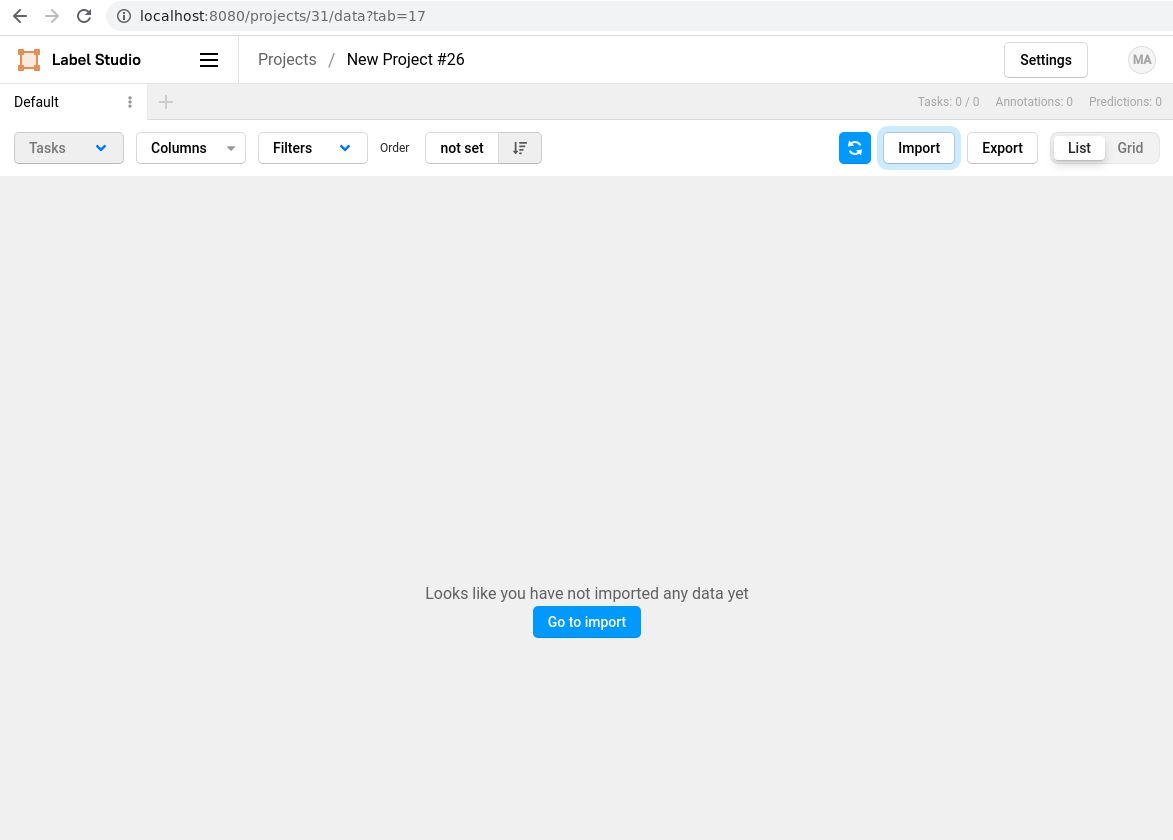
- On the AfriAnnotate UI, open the Data Manager page for a specific project.
- Click Import to open the Import dialog.
- Drag and drop files into the dialog, browse for them, or paste a list of URLs. You can add several files at once.
The dialog accepts the same file types listed under
Types of data you can import
— text/CSV/TSV/JSON tasks, or media files (images, audio, video).
JSONL/NDJSON and Parquet are cloud-storage only, not UI upload. Each
task's data keys must match the $variables in your project's
labeling config, and the wizard warns per-file when they don't line
up.
Data that you import is project-specific.
Import data using the API
Import your data using the AfriAnnotate API. See the API documentation for importing tasks.
Bulk-import from the command line
For programmatic / CI imports, use the Python SDK or curl against
the API rather than the legacy local-CLI flow:
# Python SDK (pip install label-studio-sdk):
python -c "
import json
from label_studio_sdk import LabelStudio
c = LabelStudio(base_url='{{platformURL}}', api_key='YOUR_PAT')
c.projects.import_tasks(id=42, request=json.load(open('my_tasks.json')))
"

# Or curl:
curl -X POST '{{platformURL}}/api/projects/42/import' \
  -H "Authorization: Bearer YOUR_PAT" \
  -H "Content-Type: application/json" \
  --data-binary @my_tasks.json
See API → Authentication for how to generate the Personal Access Token (PAT).
By default, AfriAnnotate expects JSON-formatted tasks using the Basic AfriAnnotate JSON format.