Configure the labeling interface
Every project on AfriAnnotate has a labeling configuration — an XML document that describes what annotators see, what data fields they label, and what categories or regions they can apply. The labeling config is the source of truth: the visual editor, the labeling stream, the data-import validation, the export schemas all read from it.
After you create a project and import data, set up the labeling interface for your project here.
Quick path (the wizard)
The fastest way is to pick a template. From the project create wizard or Project → Settings → Labeling Interface:
- Pick a template by data type (Text Classification, Named Entity Recognition, Image Bounding Box, Audio Transcription, Time Series, Video, etc.). Each template is a working starter you can tweak.
- AfriAnnotate auto-selects the data field to label based on your uploaded data's columns. If needed, change which column maps to which tag in the Visual editor.
- Add label names on new lines in the labels panel.
- (Optional) Click a label to recolour it.
- Configure additional behaviour specific to the data type (e.g. for text, "Select text by words" vs by character).
- Click Save.
Modify the labeling interface
You can make changes to the labeling interface and configuration in the project settings.
If you are modifying a project that has in-progress work, note the following:
- You cannot remove labels or change the type of labeling being performed unless you delete any existing annotations that are using those labels.
- If you make changes to the labeling configuration, any tabs that you might have created in the Data Manager are removed.
- In AfriAnnotate, open the project you want to modify.
- Click Settings.
- Click Labeling Interface.
- Browse templates, update the available labels, or use the
Codeoption to further customize the interface using tags from the tag reference.
Code view autocomplete
The code view has an autocomplete helper that appears as you type.
The autocomplete includes prompts for both tags and the parameters that are available for the selected tag:
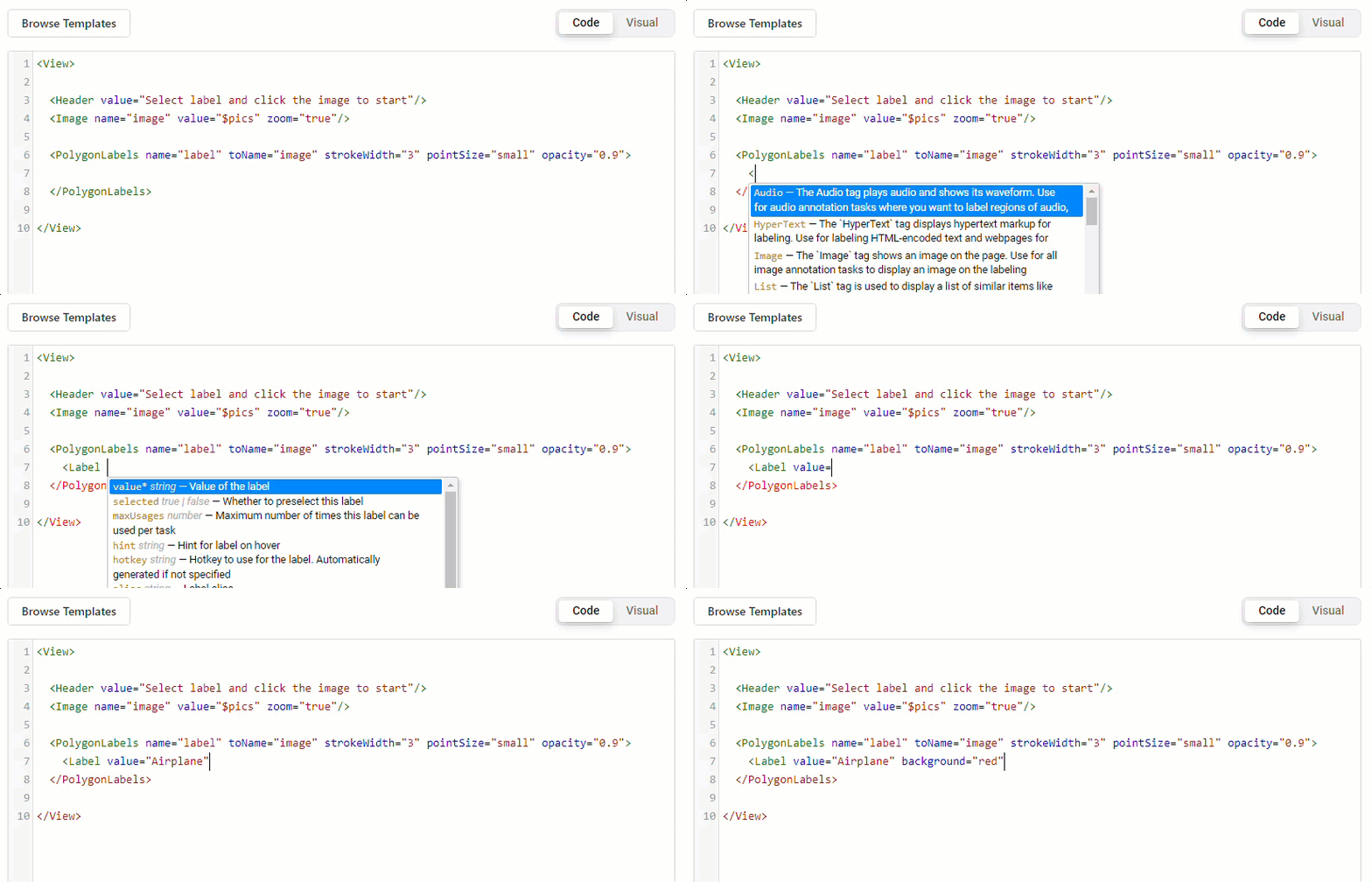
Tag suggestions appear after you type the opening angle bracket <. Parameter suggestions appear after adding a blank space within the tag.
To accept a suggestion, you can click to select it, or press the Tab key while the suggestion is highlighted.
Customize a template
You can customize a built-in template or write a custom configuration from scratch using tags from the AfriAnnotate tag reference. The tag library is shared with upstream Label Studio (same XML schema) with a few AfriAnnotate-specific additions for African-language data work (<AudioRecord>, <AudioTextAlign>). If you build a configuration that might be useful to other AfriAnnotate users, contribute it back via a pull request to https://github.com/warakacommunity/afriannotate.
The labeling configuration for a project is an XML file that contains three types of tags specific to AfriAnnotate.
| Tag type | When to use |
|---|---|
| Object | Specify the data type and input data sources from your dataset. |
| Control | Configure what type of annotation to perform and how the results of annotation appear. |
| Visual | Define how the user interface looks for labeling. |
You can combine these tags to create a custom label configuration for your dataset.
Example labeling config
For example, to classify images that are referenced in your data as URLs ($image_url) into one of two classes, Cat or Dog, use this example labeling configuration:
<View>
  <Image name="image_object" value="$image_url"/>
  <Choices name="image_classes" toName="image_object">
    <Choice value="Cat"/>
    <Choice value="Dog"/>
  </Choices>
</View>
This labeling configuration references the image resource in the Image object tag, and specifies the available labels to select in the Choices control tag.
If you want to customize this example, such as to allow labelers to select both Cat and Dog labels for a single image, modify the parameters used with the Choices control tag:
<View>
  <Image name="image_object" value="$image_url"/>
  <Choices name="image_classes" toName="image_object" choice="multiple">
    <Choice value="Cat"/>
    <Choice value="Dog"/>
  </Choices>
</View>
Add a labeling config with the API
You can configure your labeling configuration with the server API. See the Backend API documentation for more details.