Cloud storage
For production-scale datasets, point AfriAnnotate at a cloud bucket rather than uploading files through the UI. The platform reads tasks from the bucket as source storage and (optionally) writes annotations back to a bucket as target storage.
Supported providers:
| Provider | Source | Target |
|---|---|---|
| Amazon S3 | ✓ | ✓ |
| Google Cloud Storage | ✓ | ✓ |
| Microsoft Azure Blob Storage | ✓ | ✓ |
| Redis | ✓ | ✓ |
Self-hosted deployments can additionally use Local storage.
Each source and target storage connection is project-specific. You can connect multiple buckets to the same project — useful when data lands in several buckets owned by different teams.
For one-off uploads (proof of concept, a single CSV, a small batch of images), the drag-drop UI is faster — no bucket setup required. Cloud storage is the right call once data ingestion is recurring and you want the originals to live somewhere you control + back up.
Source storage
AfriAnnotate does not automatically sync data from source storage. If you upload new data to a connected cloud storage bucket, sync the storage connection using the UI to add the new labeling tasks to AfriAnnotate without restarting. You can also use the API to set up or sync storage connections (/api/storages/<provider>/ — see the API overview for where the schema lives).
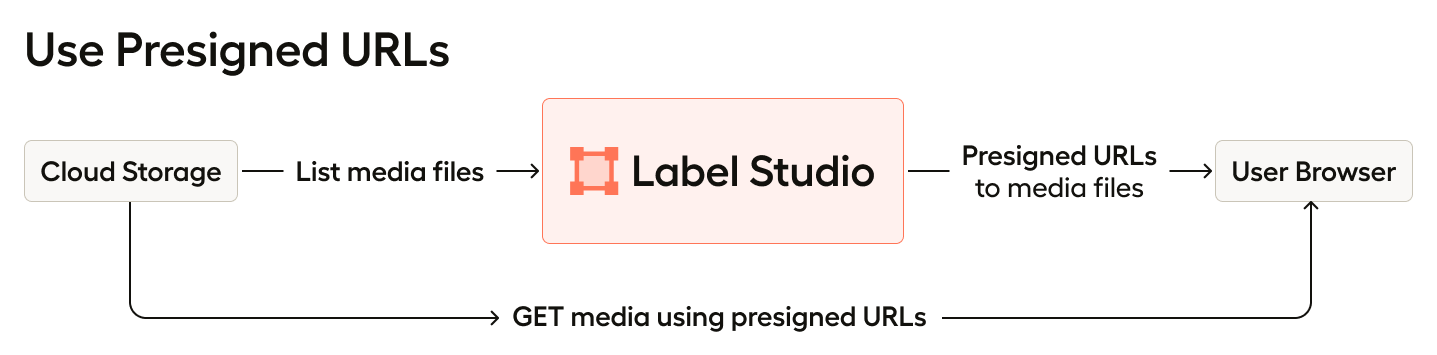
Task data synced from cloud storage is not stored in AfriAnnotate. Instead, the data is accessed using presigned URLs. You can also secure access to cloud storage using VPC and IP restrictions for your storage — see the Security model.
Keeping all data in your buckets
Organisations that must not have media on the platform enforce the policy Data stays in the organisation's own buckets (Organization → Policies → Storage). With it on, uploads are refused, projects need a source and a target storage before publishing, the splitter writes clips into the source bucket, and Hugging Face pushes are off. See Org policies.
Reusing a connection
Credentials are entered once per bucket. When you add another storage for a bucket the organisation has already connected, whether a target storage next to a source, or the same bucket in another project, the form starts with a Connection choice listing the saved connections (bucket, whose credentials, and which project connected it). Pick one and:
- the credential fields disappear; the server copies the credentials from that connection (they are never sent back to the browser);
- the bucket (and for S3 the region and endpoint) is filled in;
- for a target storage a folder is proposed next to the source, for
example
audio/annotations/, and a title is suggested. Change either as you like: nothing needs creating in the bucket, objects are simply written under that prefix.
Choose New connection to enter credentials by hand as before. Saved connections are offered from projects you manage in the same organisation (all projects for owners and admins).
API: GET /api/storages/connections?project=<id> lists what you may
reuse; pass copy_credentials_from: "<type>:<import|export>:<id>" when
creating or validating a storage instead of the credential fields.
Source storage permissions
-
If you set the import method to "Files", AfriAnnotate backend will only need LIST permissions and won't download any data from your buckets.
-
If you set the import method to "Tasks", AfriAnnotate backend will require GET permissions to read JSON files and convert them to AfriAnnotate tasks.
When your users access labeling, the backend will attempt to resolve URI (e.g., s3://) to URL (https://) links. URLs will be returned to the frontend and loaded by the user's browser. To load these URLs, the browser will require HEAD and GET permissions from your Cloud Storage. The HEAD request is made at the beginning and allows the browser to determine the size of the audio, video, or other files. The browser then makes a GET request to retrieve the file body.
Source storage Sync and URI resolving
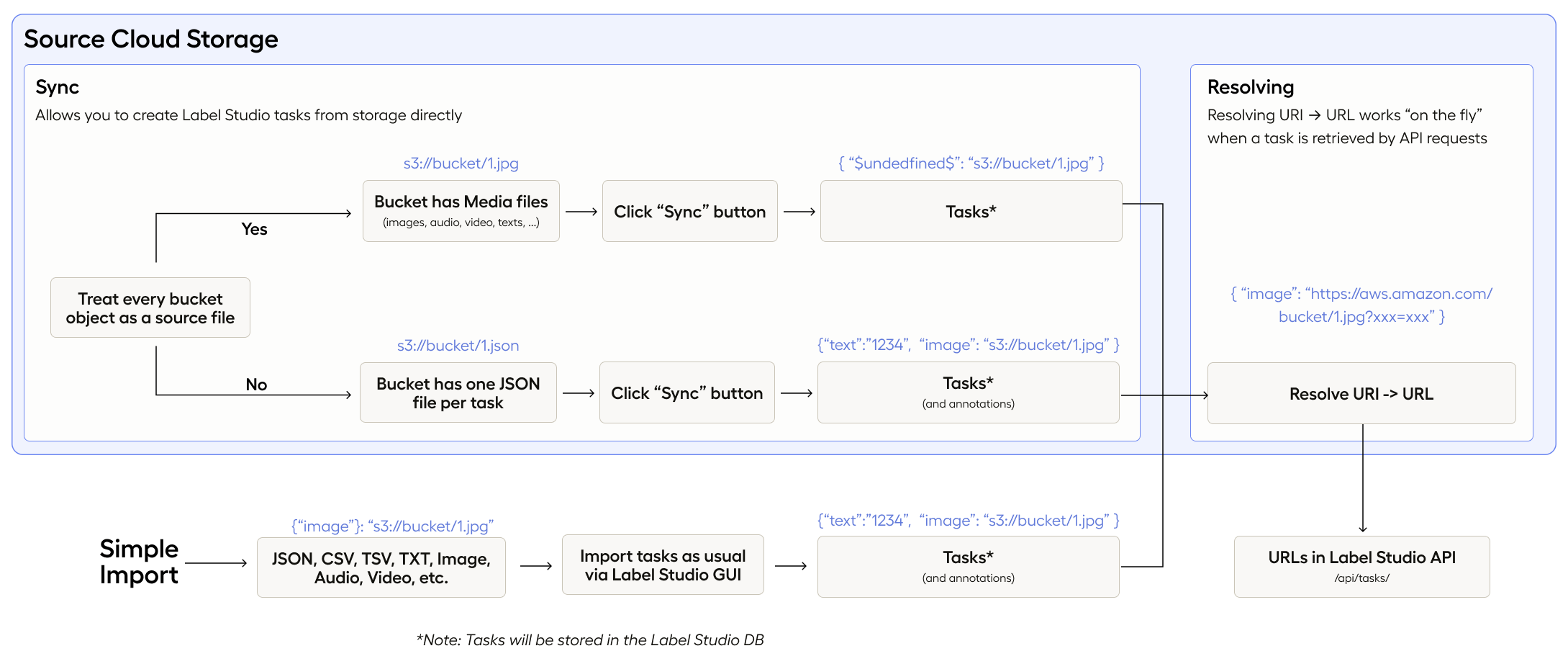
Source storage functionality can be divided into two parts:
- Sync - when AfriAnnotate scans your storage and imports tasks from it.
- URI resolving - when the AfriAnnotate backend requests Cloud Storage to resolve URI links (e.g.,
s3://bucket/1.jpg) into HTTPS (https://aws.amazon.com/bucket/1.jpg). This way, user's browsers are able to load media.
Tasks must fit the labeling setup. A task from a bucket is held to the
same rule as an uploaded one: it needs every field the labeling setup
shows, and something where its media goes. A task that does not fit is
left out, the sync finishes as completed with errors, and its error
details give the reason for each one (for example "diagnosis" key is expected in task data). In practice:
- A bucket of bare media files (each file a task) only suits a setup with one field. With more fields, put JSON task files in the bucket that name every field.
- Fix the JSON, or the labeling setup, and sync again. A file none of whose tasks were imported is tried again; files already imported are skipped.
Import method
The "Treat every bucket object as a source file" option was renamed and reintroduced as the "Import method" dropdown.
AfriAnnotate Source Storages feature an "Import method" dropdown. This setting enables two different methods of loading tasks into AfriAnnotate.
Tasks
When set to "Tasks", tasks in JSON, JSONL/NDJSON or Parquet format can be loaded directly from storage buckets into AfriAnnotate. This approach is particularly helpful when dealing with complex tasks that involve multiple media sources.
You may put multiple tasks inside the same JSON file, but not mix task formats inside the same file.
Example with bare tasks
task_01.json
{
  "image": "s3://bucket/1.jpg",
  "text": "spiders are awesome"
}
task_02.json
{
  "image": "s3://bucket/2.jpg",
  "text": "cats are awesome"
}
Or:
tasks.json
[
  {
    "image": "s3://bucket/1.jpg",
    "text": "spiders are awesome"
  },
  {
    "image": "s3://bucket/2.jpg",
    "text": "cats are awesome"
  }
]
Example with tasks, annotations and predictions
task_with_predictions_and_annotations_01.json
{
    "data": {
        "image": "s3://bucket/1.jpg",
        "text": "spiders are awesome"
    },
    "annotations": [...],
    "predictions": [...]
}
task_with_predictions_and_annotations_02.json
{
    "data": {
      "image": "s3://bucket/2.jpg",
      "text": "cats are awesome"
    }
    "annotations": [...],
    "predictions": [...]
}
Or:
tasks_with_predictions_and_annotations.json
[
  {
      "data": {
          "image": "s3://bucket/1.jpg",
          "text": "spiders are awesome"
      },
      "annotations": [...],
      "predictions": [...]
  },
  {
      "data": {
        "image": "s3://bucket/2.jpg",
        "text": "cats are awesome"
      }
      "annotations": [...],
      "predictions": [...]
  }
]
Example with JSONL
tasks.jsonl
{ "image": "s3://bucket/1.jpg", "text": "spiders are awesome" }
{ "image": "s3://bucket/2.jpg", "text": "cats are awesome" }
In AfriAnnotate and Starter Cloud editions, Parquet files can also be used to import tasks in the same way as JSON and JSONL.
Files
When set to "Files", AfriAnnotate automatically lists files from the storage bucket and constructs tasks. This is only possible for simple labeling tasks that involve a single media source (such as an image, text, etc.).*
Pre-signed URLs vs. Storage proxies
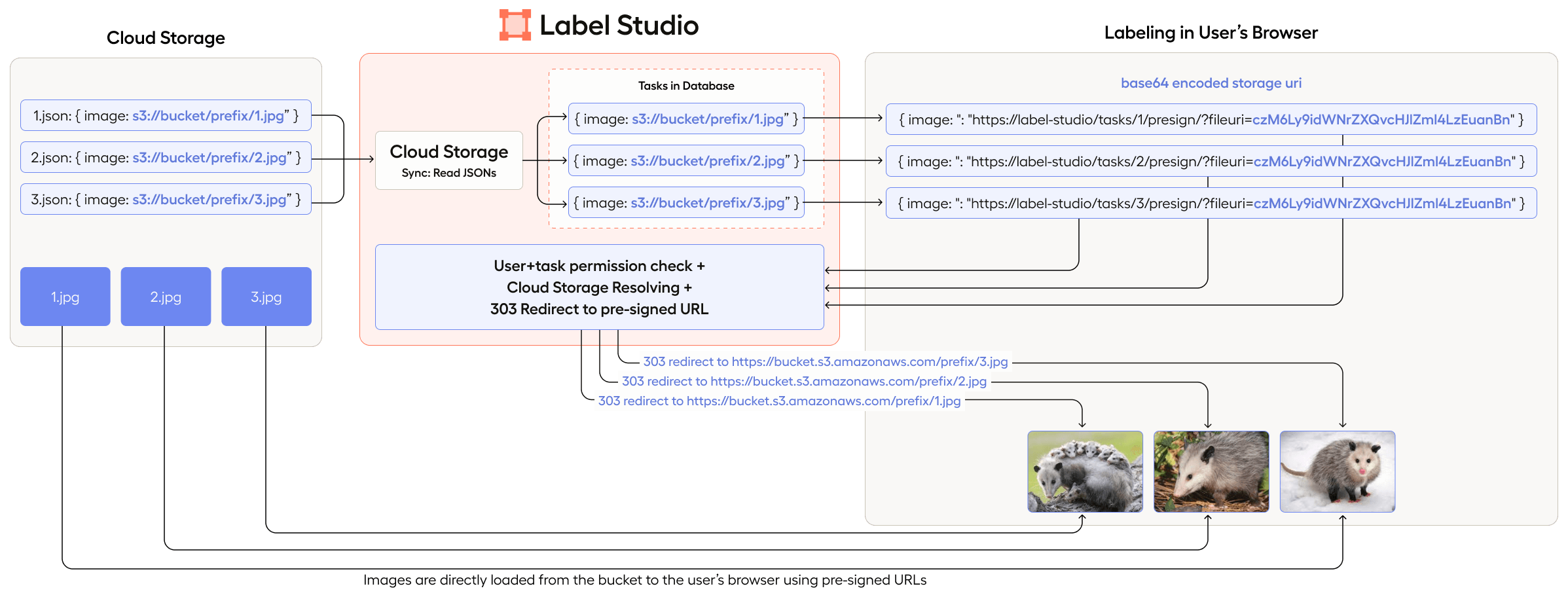
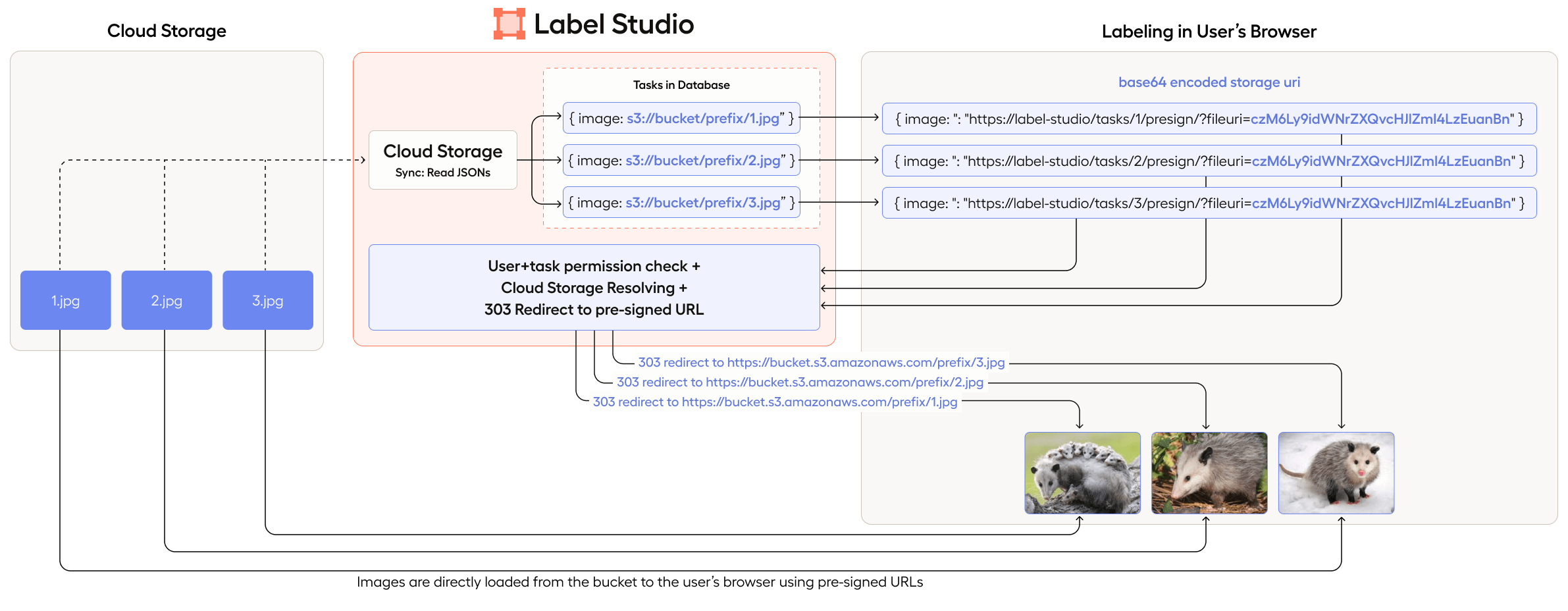
There are two secure mechanisms in which AfriAnnotate fetches media data from cloud storage: via pre-signed URLS and via proxy. Which one you use depends on whether you have Use pre-signed URLs toggled on or off when setting up your source storage. Use pre-signed URLs is used by default. Proxy storage is enabled when Use pre-signed URLs is OFF.
Pre-signed URLs
In this scenario, your browser receives an HTTP 303 redirect to a time-limited S3/GCS/Azure presigned URL. This is the default behavior.
The main benefit to using pre-signed URLs is if you want to ensure that your media files are isolated from the AfriAnnotate network as much as possible.
The permissions required for this are already included in the cloud storage configuration documentation below.
Proxy storage
When in proxy mode, the AfriAnnotate backend fetches objects server-side and streams them directly to the browser.
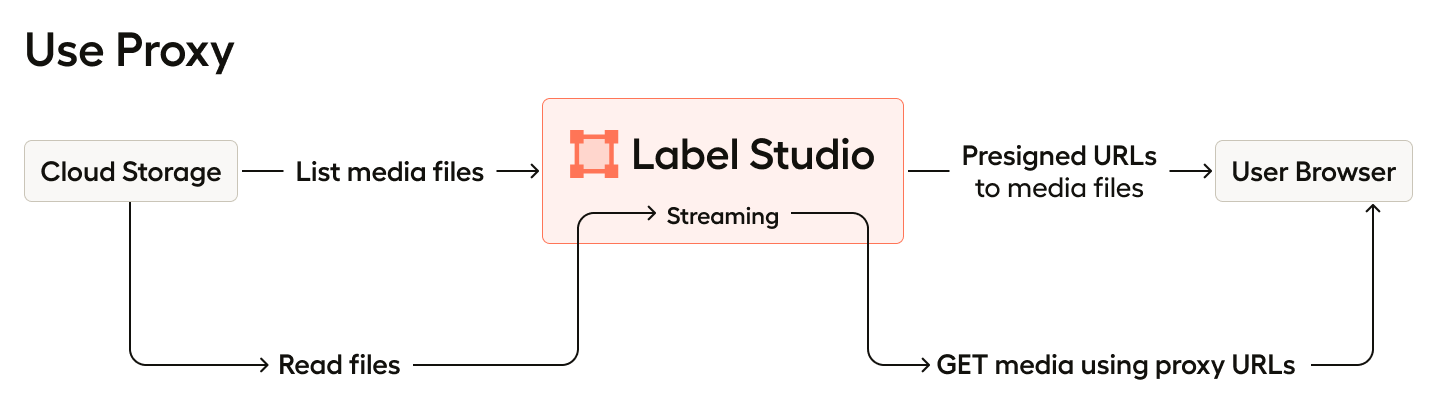
This has multiple benefits, including:
- Security
- Access to media files is further restricted based on AfriAnnotate user roles and project access.
- This access is applied to cached files. This means that even if the media is cached, access will be restricted to that file if a user's access to the task is revoked.
- Data stays within the AfriAnnotate network boundary. This is especially useful for on-prem environments who want to maintain a single entry point for their network traffic.
- Configuration
- No CORS settings are needed.
- No pre-signed permissions are needed.
To allow proxy storage, you need to ensure your permissions include the following:
AWS S3
{
    "Version": "2012-10-17",
    "Statement": [
        {
            "Effect": "Allow",
            "Action": [
                "s3:GetObject",
                "s3:ListBucket"
            ],
            "Resource": [
                "arn:aws:s3:::your-bucket-name",
                "arn:aws:s3:::your-bucket-name/*"
            ]
        }
    ]
}
Google Cloud Storage
storage.objects.get- Read object data and metadatastorage.objects.list- List objects in the bucket (if using prefix)- for export storage also
storage.objects.create
Grant the service account Storage Object Viewer (import) or
Storage Object Admin (export) on the bucket; both cover the above.
storage.buckets.get (bucket metadata) is not required: the
connection check proves access by listing objects. If an older version
told you the account "does not have storage.buckets.get access", update
or grant Storage Legacy Bucket Reader on the bucket as a stopgap.
Paste the service account's JSON key into Google Application
Credentials; the bucket field takes the bare name (no gs://, no
path — put the path in Bucket prefix).
Azure Blob Storage
Add the Storage Blob Data Reader role, which includes:
Microsoft.Storage/storageAccounts/blobServices/containers/blobs/readMicrosoft.Storage/storageAccounts/blobServices/containers/blobs/getTags/action
Large media files are streamed in sequential 8 MB chunks, which are split into different GET requests. This can result in frequent requests to the backend to get the next portion of data and uses additional resources.
You can configure this using the following environment variables:
RESOLVER_PROXY_MAX_RANGE_SIZE- Defaults to 8 MB, and defines the largest chunk size returned per request.RESOLVER_PROXY_TIMEOUT- Defaults to 20 seconds, and defines the maximum time uWSGI workers spend on a single request.
Target storage
If you configure target storage, your annotations will be saved in two places: in the AfriAnnotate database and in your target storage.
- When annotators click Submit or Update while labeling tasks, an annotation is sent to the target storage as well as to the AfriAnnotate database.
- When a user clicks the Sync button on the target storage, all annotations will be saved again from scratch.
The target storage receives a JSON-formatted export of each annotation. See Task format for the structure of exported annotations.
You can also delete annotations in target storage when they are deleted in AfriAnnotate. By default this option is off.
Target storage permissions
To use this type of storage, you must have PUT permission, and DELETE permission is optional.
Local storage
On self-hosted deployments, AfriAnnotate can read media straight off the server's filesystem instead of a cloud bucket — useful for air-gapped setups or when data must never leave the host. It behaves like a source/target storage but points at a directory rather than a bucket.
Local storage is off by default and gated by two environment
variables (either may be prefixed LABEL_STUDIO_ or HEARTEX_):
| Variable | Default | Purpose |
|---|---|---|
LOCAL_FILES_SERVING_ENABLED | false | Must be true before files are served over /data/local-files/ |
LOCAL_FILES_DOCUMENT_ROOT | / | Base directory; every storage path must sit inside it |
Once enabled, add it like any other connection at Project → Settings → Cloud Storage → Add Source Storage → Local Files:
- Set Absolute local path to a subdirectory of
LOCAL_FILES_DOCUMENT_ROOT. - Choose the import method — Files (one task per media file,
each pointing at
/data/local-files/?d=<relative-path>) or Tasks (parse.json/.jsonlfiles as task definitions). - Click Sync to scan the directory and create tasks.
Target local storage writes each annotation to disk under the
configured path when it's submitted, as a file named by the bare
annotation ID (no extension). Set FUTURE_SAVE_TASK_TO_STORAGE=true
to key by task instead (<task_id>.json, one file per task) — the
same rule as cloud target storage.
Files are streamed through the authenticated /data/local-files/
endpoint (with ETag + HTTP range support for audio/video seeking).
Access is checked on every request: the user must be signed in, the
requested file must live inside a registered storage path, and the
user must have permission on that storage's project — so local
serving inherits the same project-level access control as the rest
of the platform.
Don't enable local file serving on public multi-tenant deployments. It's designed for on-premise single-tenant hosts. On the reference cloud, use S3 / GCS / Azure instead.
Checking that the files will work
Every source connection has a file check on its card. It samples a few of the connection's files, reads them the way the browser does, and says:
| It looks at | And reports |
|---|---|
| Whether the files can be read | A problem when the storage refuses them, with its answer |
| The bucket's CORS rule (pre-signed URLs) | A problem when the browser may not load the files, with the rule to add. Add the rule puts it on the bucket for you (Google Cloud Storage and S3-compatible storage, when the connection's credentials may change the bucket's settings); it is added beside the rules the bucket already has, and none of them is changed. Otherwise Copy the rule and add it in the provider's console |
| Requests for part of a file | A warning when players must download whole files, which makes seeking and long recordings slow |
| The format | A warning for formats browsers do not play (TIFF, HEIC, AMR, AVI, MKV and the like) |
| Where an MP4 keeps its index | A warning when a video cannot start until it is fully downloaded |
| Size and length | A warning for heavy files: audio over 10 minutes or 50 MB, video over 200 MB, images over 10 MB |
Nothing is refused: the check is advice. It runs by itself after a sync it has not seen, and whenever you press Check files; Details lists the findings with what to do about each, and the files it sampled.
An organisation sets what heavy means in its policies (Organization,
Policies, Storage): the minutes over which a recording is heavy, and the
megabytes for audio, video and images. A deployment's own defaults come
from STORAGE_HEAVY_AUDIO_SECONDS, STORAGE_HEAVY_AUDIO_BYTES,
STORAGE_HEAVY_VIDEO_BYTES and STORAGE_HEAVY_IMAGE_BYTES. Lengths and
codecs are read with ffprobe when it is installed.
Finding the heavy tasks
The check samples a connection. To know about every task, select tasks in the Data Manager and run Measure files from the actions menu. It reads the size and length of each task's media file (from a bucket, an upload or a web address) and fills three columns you can show, filter and sort on: Heavy file, File size (bytes) and Length (seconds). Large selections are measured a part at a time: the action says how many are left, and the rest of the project is measured overnight by the service's daily job (or run the action again to do more now). A task is measured once.
Filter on Heavy file is true to see what to split, replace or keep away from annotators on phones.
Long recordings are best cut into clips before annotation: see splitting recordings into clips.
On slow connections
When the browser says the connection is slow (2G or 3G) or the person has switched on its data saver, the labeling screen spares data:
- A task whose measured file is heavy opens with a short notice of its size ("This recording is 184 MB. On this connection it will take a while to load."). It needs Measure files to have run on the task.
- A video loads its header only, and the rest as it plays.
- In a task with several images, only the image in view loads; the neighbouring ones are not fetched ahead.
Browsers that do not report the connection (Safari, Firefox) are treated as fast: nothing is held back there.
Troubleshooting
When working with an external cloud storage connection, keep the following in mind:
- For Source storage:
- When Files import method is selected, AfriAnnotate doesn’t import the data stored in the bucket, but instead creates references to the objects. Therefore, you have full access control on the data to be synced and shown on the labeling screen.
- When Tasks import method is selected, bucket files are assumed to be immutable; the only way to push an updated file's state to AfriAnnotate is to upload it with a new filename to storage or delete all tasks that are associated with that file and resync.
- Sync operations with external buckets only goes one way. It either creates tasks from objects on the bucket (Source storage) or pushes annotations to the output bucket (Target storage). Changing something on the bucket side doesn't guarantee consistency in results.
- We recommend using a separate bucket folder for each AfriAnnotate project.
- Storage Regions: To minimize latency and improve efficiency, store data in cloud storage buckets that are geographically closer to your team rather than near the AfriAnnotate server.
Access and CORS problems
Most "the media won't load" reports trace back to how the browser is reaching the object — which depends on whether Use pre-signed URLs is on (the presigned default) or off (proxy mode):
- Presigned mode (default) — the browser fetches the object
directly from S3 / GCS / Azure, so the bucket's own CORS policy
must allow
GETandHEADfrom the AfriAnnotate origin. Broken images, blocked audio/video, or console CORS errors here almost always mean the bucket CORS config is missing or too narrow. Confirm the credentials also carryGET(read) andLISTpermissions as described under Source storage permissions. - Proxy mode (pre-signed URLs OFF) — the backend streams the object server-side, so no bucket CORS is required and no presigned permissions are needed. If a project is fighting cross-origin errors that you can't resolve at the bucket, switching the connection to proxy mode sidesteps CORS entirely.
- The page's own security policy — in presigned mode the browser
loads media from the provider's host, which the Content Security
Policy must allow. Google Cloud Storage, Amazon S3 and Azure Blob
Storage hosts are allowed by default. For an S3-compatible endpoint
of your own, or a CDN in front of a bucket, set
LS_CSP_STORAGE_HOSTSto its origin (comma-separated for several), for examplehttps://minio.example.org. A console error that namesContent-Security-Policyrather than CORS points here. - A minimal CORS rule — allow
GETandHEADfrom the AfriAnnotate origin, with the response headersContent-Type,Range,Accept-Ranges,Content-RangeandContent-Length. Nothing else is needed: the sign-in token is never sent to the storage provider. - 403 / access denied — re-check the connection credentials and the bucket policy; proxy mode additionally enforces AfriAnnotate project access on top of the bucket permissions, so a user with no role on the project is denied even when the bucket would allow it.
- Local storage — a
403on/data/local-files/meansLOCAL_FILES_SERVING_ENABLEDisn'ttrue; a404means the requested file isn't inside a registered storage path (or doesn't exist). See Local storage.
For more troubleshooting information, see Troubleshooting AfriAnnotate.