Comments and notifications
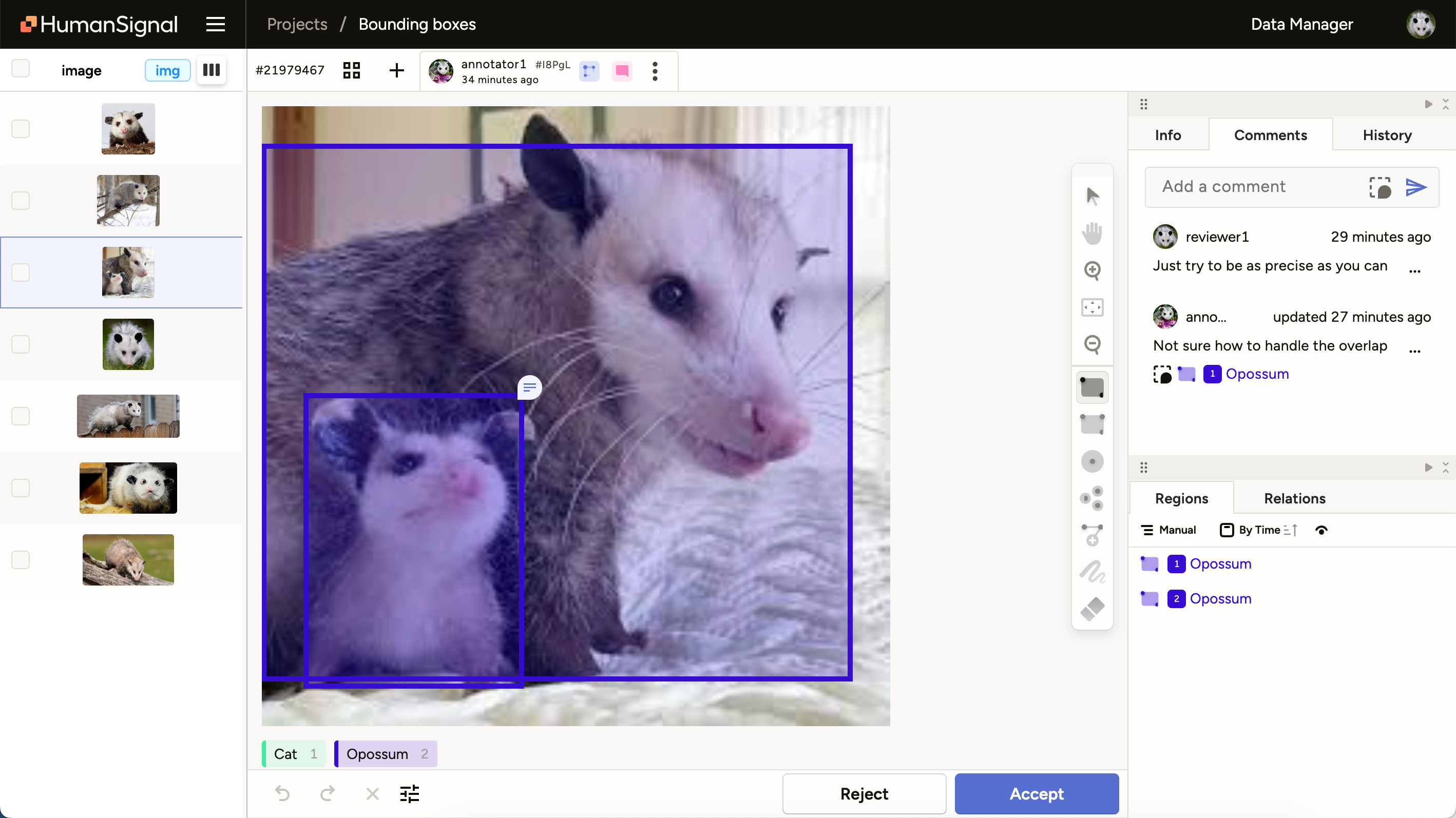
Comments are a AfriAnnotate feature that allows communication between reviewers and annotators:
| Annotators | Reviewers |
|---|---|
|
Annotator to reviewer communication
|
Reviewer to annotator communication
|
This annotator-reviewer feedback loop is an important tool in your review workflow, allowing you to:
- Speed up the labeling process
- Increase the annotation quality
- Build more solid labeling and review processes
Permissions
All users have the following commenting permissions for any annotations that they would otherwise have access to view:
- View the Comments panel and read previous comments.
- Add new comments.
Additional permissions are as follows:
| Action | Annotator | Reviewer and higher roles |
|---|---|---|
| Add comment | true | true |
| View comment | true | true |
| Resolve/unresolve own comment | true | true |
| Resolve/unresolve other comments | false | true |
| Delete own comment | true | true |
| Delete other comments | false | false |
| Link/unlink own comment | true | true |
| Link/unlink other comments | false | false |
Add a comment
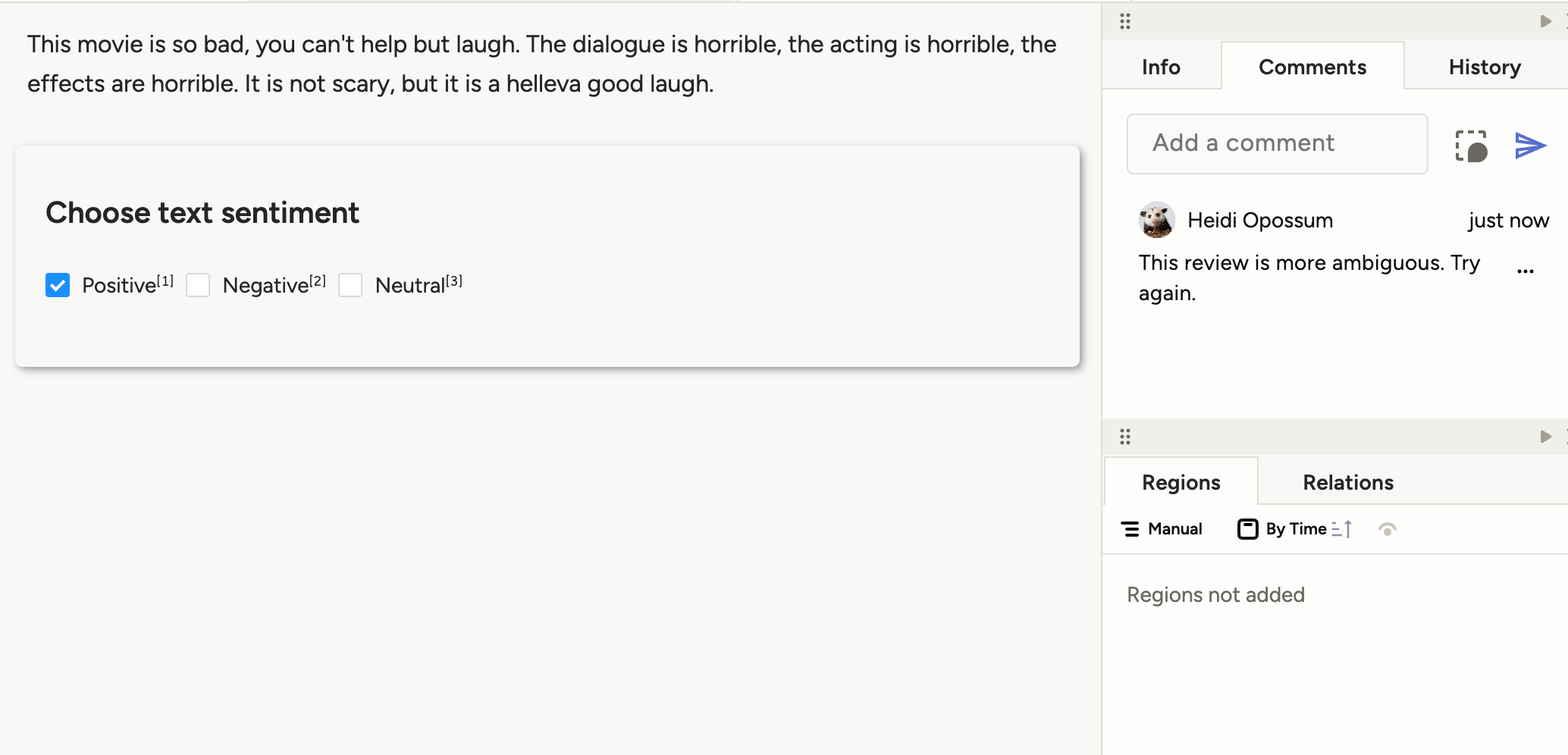
You can add comments from the Comments panel when viewing an annotation. All users have access to the Comments panel.
Link comments to regions and fields
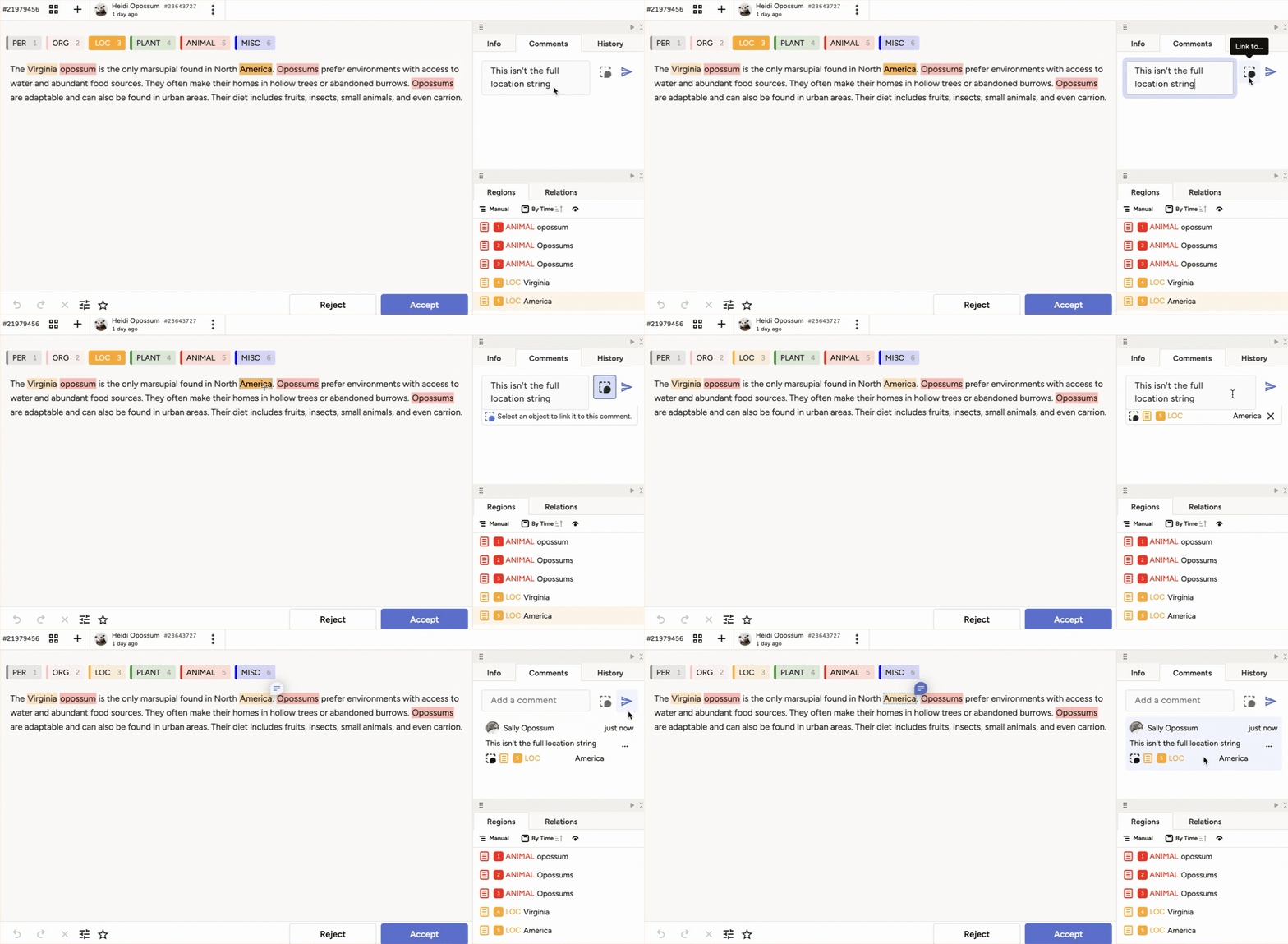
You can link your comment to a specific area within an annotation.
This can be a region (for example, a bounding box or a span of text) or it can be a field (for example, a classification).
Note the following:
- You can link comments to fields within the labeling configuration. However, if the field is a classification, choice, or taxonomy, you can only attach a comment if there is already a selection.
- You can only link comments to an entire text area. You cannot link comments to regions within text areas.
- Linking is not supported for
<Ranker>or<Pairwise>fields.
Comment actions
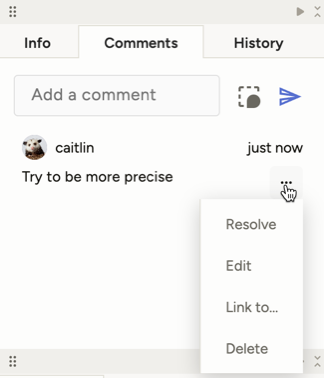
The actions you can perform depend on your user role permissions and whether it's your comment. You can access comment actions from the overflow menu:
Filter for comments
The Data Manager has several columns to display comment information:
| Column | Description | View permissions |
|---|---|---|
| Comment texts | The text in the comment. | All user roles |
| Comments | Total number of comments for a particular task. | All user roles |
| Unresolved comments | Total number of comments that are not yet resolved. | All user roles |
| Commented at | The date and time at which the comment was made. | All user roles except Annotator |
| Commented authors | User who wrote comments. | All user roles except Annotator |
Users in the Reviewer or Annotator role must be granted access to view the Data Manager. You can grant access in Project → Settings.
Require comments
You can require reviewers to leave a comment when they reject:
- Project → Settings → Review → Reviewers must leave a comment on reject — enforced in the UI and by the server.
There is no project setting that forces annotators to comment on skip.
Comment notifications
To see notifications, click your user profile icon in the upper right.
Use the overflow menu to mark notifications as read or unread.
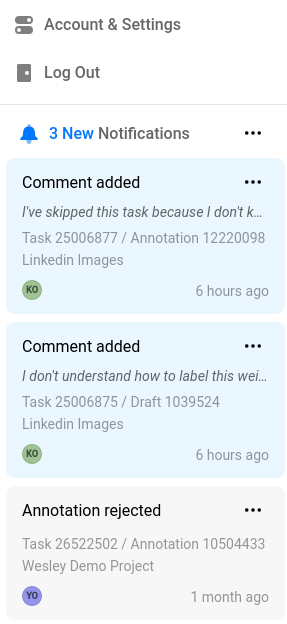
Notifications that have already been read are denoted with a gray background.
Annotators
Annotators can write comments on their own annotations.
Sent notifications
When an annotator writes a comment, the users who are notified depend on whether it is the first comment on the annotation:
- If this is the first comment on an annotation, then all users within a project that have the role of Reviewer or higher see the comment in their notification list.
- If this comment is in response to an ongoing discussion within the comments panel, then only users who are have added comments to the annotation will see a notification.
Received notifications
An annotator receives a notification any time another user leaves a comment on one of their annotations.
Reviewers and other users
Reviewers can write comments on annotations that they are reviewing. This applies to users with the Reviewer, Manager, Admin, and Owner role.
Sent notifications
When a reviewer writes a comment, then the users who are notified depend on their role and whether they have also left comments:
- Annotators get a notification for all comments on the annotations they created.
- If other users have also left comments on the annotation (for example, if multiple users are reviewing the annotation), then they will also be notified when a new comment appears.
Received notifications
A reviewer receives a notification when:
- If the comment is the first comment on an annotation, then all users within a project that have the role of Reviewer or higher see the comment in their notification list.
- If you have already left a comment on an annotation, you receive a notification when any user, regardless of role, adds a new comment.